How to Generate Accurate SRT and WebVTT Subtitles and Translate Them
Turn spoken audio and video into SRT and WebVTT subtitle files with millisecond timecodes at my.voicee.pro, verify every cue against the recording, and translate captions for international viewers with timing you can review before export.
Key Takeaways / TL;DR
- Export standard SRT and WebVTT files with millisecond timecodes that open straight in YouTube, course platforms, and video editors.
- Cue splitting is designed around speech pauses and speaker turns to help keep questions and answers readable; review cues before export.
- For Translate subtitles, choose Original timecodes under Layout mode to keep the source cue timings; review the translation before export.
- Click any timestamp in the interactive workspace at my.voicee.pro to hear the audio and fix names or terms before download.
SRT, WebVTT, and Burned-In Captions: Which Format Fits Your Video
| Output Format | Where It Works | How Viewers See It | How to Get It in Voicee Studio |
|---|---|---|---|
| SubRip (.srt) | YouTube, video editors, and social video platforms | Viewers can turn captions on or off in the player | Run Subtitles or Translate subtitles, then choose SRT or WebVTT from Download |
| WebVTT (.vtt) | Web video players and online learning platforms | Selectable caption track for browser and course players | Run Subtitles or Translate subtitles, then choose SRT or WebVTT from Download |
| Burned-in translated captions | Mobile feeds and videos watched on mute | Translated text is rendered directly onto the video frames | Run Revoicing on Basic quality with Subtitles on the video enabled |
Steps to Your Result
Upload Your Video or Paste a Link
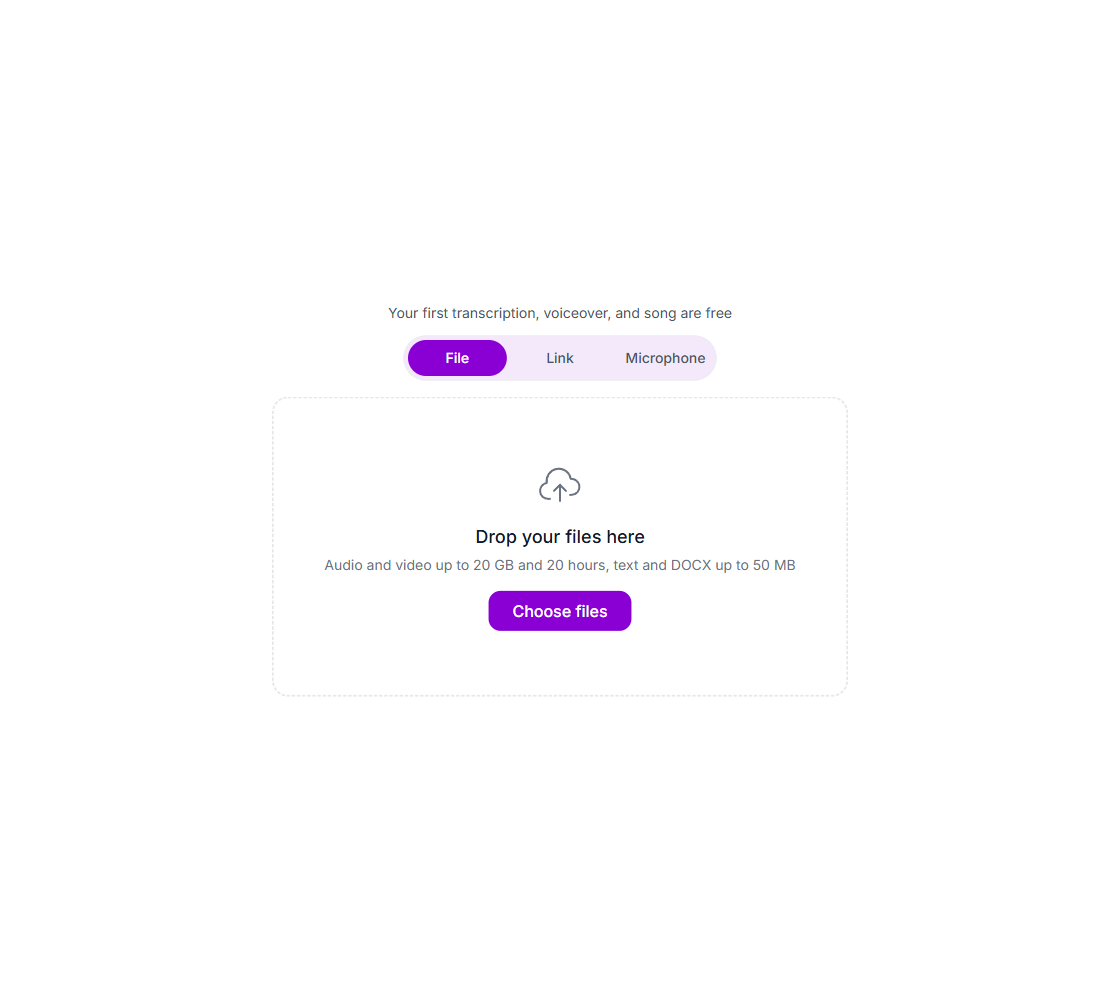
Sign in at my.voicee.pro, stay on the File tab, and click Choose files to add an audio or video recording you have permission to process — or switch to the Link tab and paste the video URL.
Select Subtitles or Translate Subtitles and Click Process
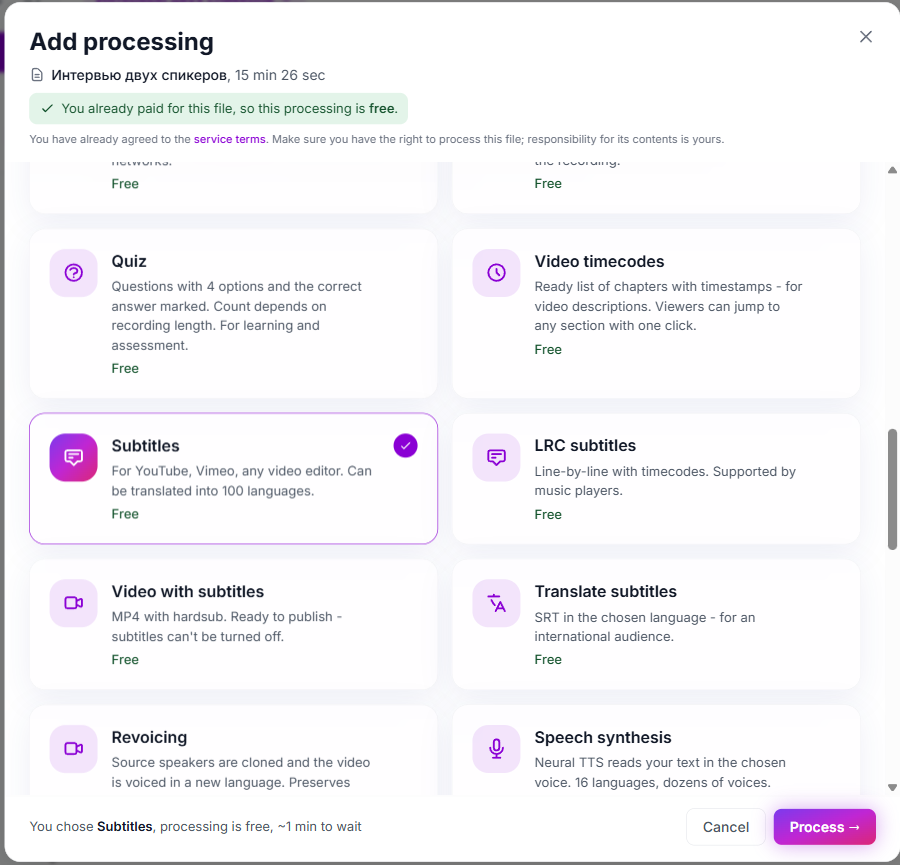
Choose Subtitles and click Process for captions in the source language. For an international track, select Translate subtitles, pick your target language, and choose Original timecodes under Layout mode if you want to retain the source timing, then click Process.
Review Cues Against the Audio and Download SRT or WebVTT
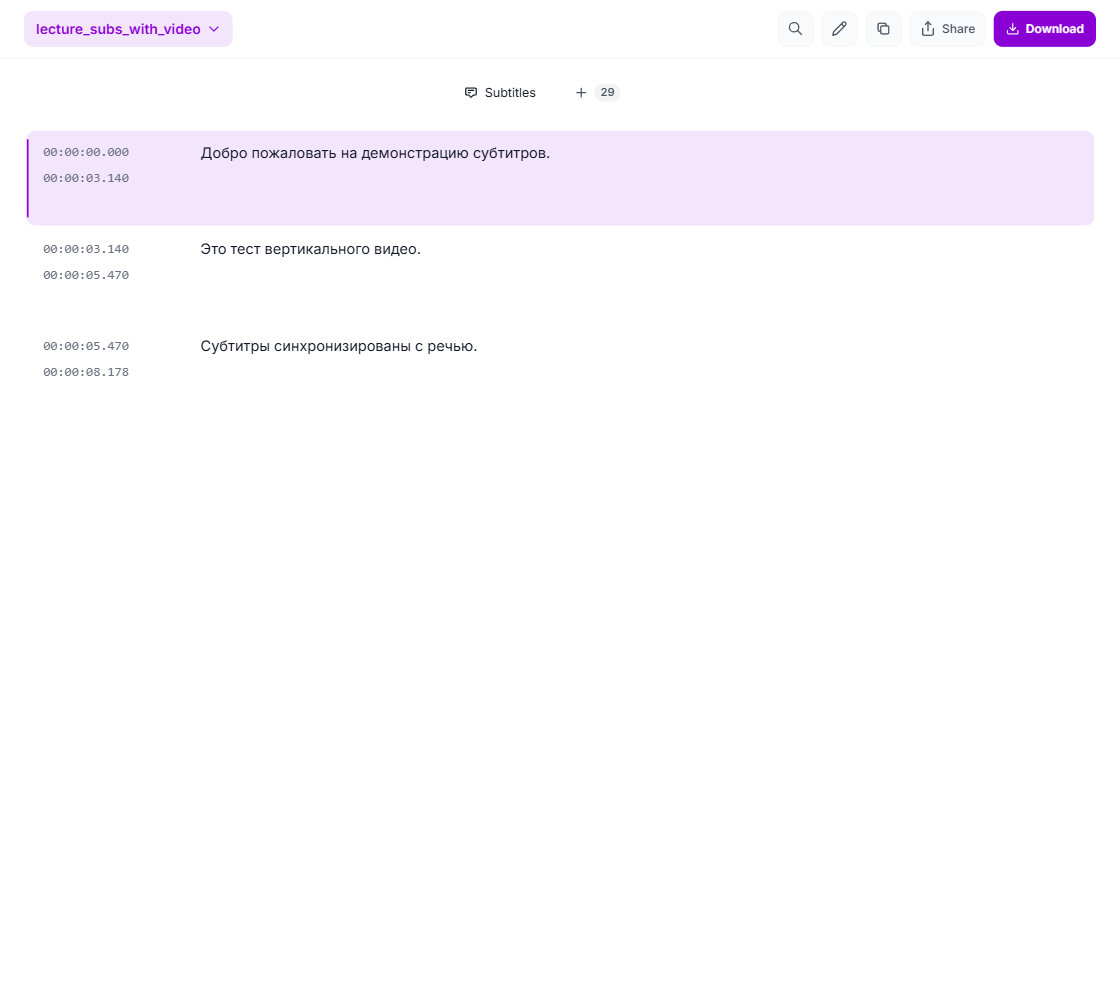
Check the cue text and millisecond timecodes on the result screen, using cue timestamps to hear the matching moments and checking names or terminology before export. Click Download and choose SRT or WebVTT, or use Add processing to order Revoicing on Basic quality with Subtitles on the video enabled.
Why Natural Cue Breaks Keep Viewers Watching
Unformatted speech transcripts make frustrating captions when long sentences crowd the screen at once or linger across silent pauses. Designing subtitle cues around speech pauses and speaker turns helps keep lines readable and easier to follow.
Choose Original timecodes when translating subtitles in Voicee Studio to retain the source cue timings, then check the translated text against the recording. Upload a video at my.voicee.pro to check subtitle timing on your own footage — your first transcription is free, and hour packages from $7 / €6 never expire.
Frequently Asked Questions
Which subtitle formats can I download?
You can download subtitles as SRT or WebVTT files with millisecond timecodes. Review names, terminology, and timing against the recording before export.
Turn a Recording Into Something Your Team Can Use
Start with a transcript, then prepare notes, decisions and action items from the same recording.