How to Transcribe Multi-Speaker Interviews and Meetings With Speaker Labels and Timestamps
Upload a multi-speaker interview or meeting recording at my.voicee.pro to get a punctuated transcript with automatic speaker labels, clickable timestamps for quote checking, and a Business summary.
Key Takeaways / TL;DR
- Speaker turns are separated and labeled automatically, so a multi-person interview reads like a clear dialogue instead of one wall of text.
- Upload an audio or video file from your device, paste a link, or record straight from your microphone in the same browser workspace.
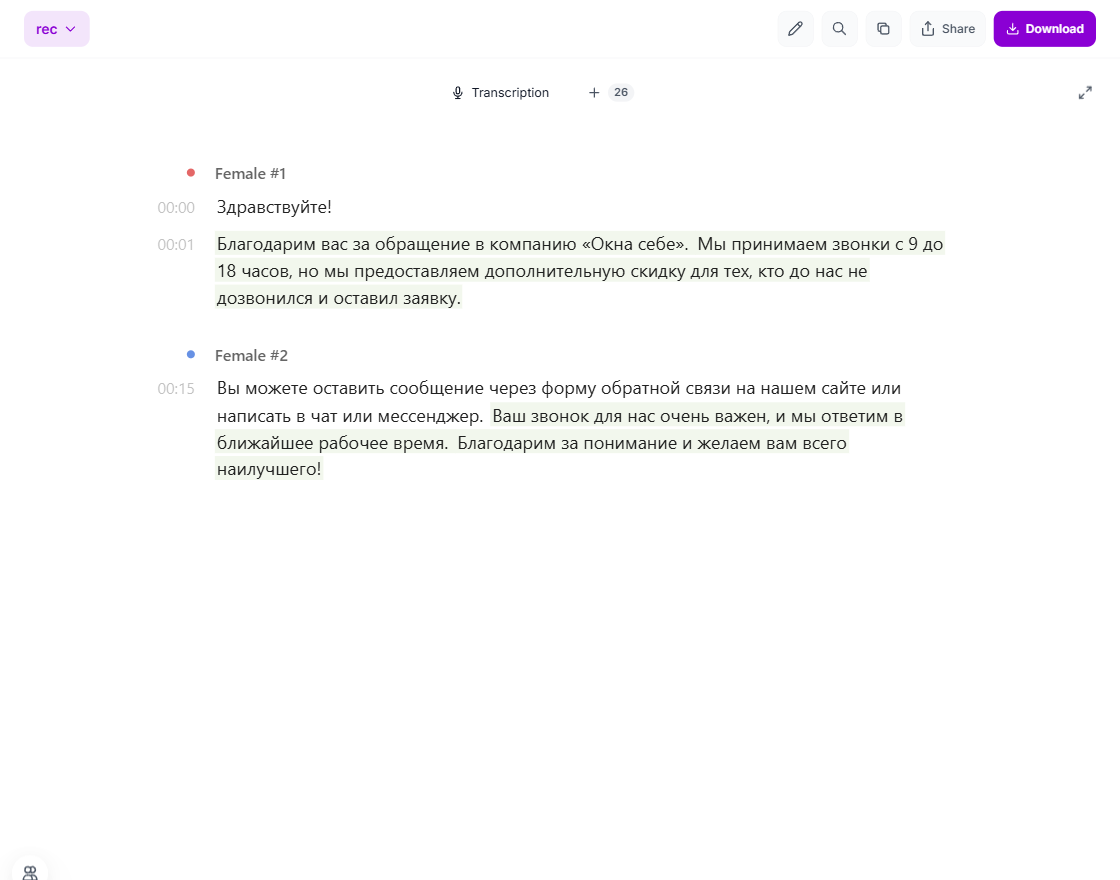
- Every speaker turn starts with a clickable timestamp like 00:02, letting journalists and researchers verify an exact quote against the audio in one click.
- Run a Business summary on the same recording to get an overview, main topics with time ranges, agreements and recommendations.
Transcribing Interviews by Hand vs. Working in Voicee Studio
| Interview Task | Doing It by Hand | In Voicee Studio | What It Gives You |
|---|---|---|---|
| Turning speech into text | Hours of pausing, rewinding, and typing | Automatic punctuated transcript divided into speaker turns | A working draft you can read and search right away |
| Tracking who said what | Listening repeatedly to tell voices apart | Automatic speaker labels plus inline Silence markers on pauses | Helps follow questions and answers across speakers |
| Checking exact quotes | Scrubbing back and forth along an audio timeline | Clickable timestamps at the start of every line | One-click audio playback to confirm names, numbers, and tone |
| Summarizing outcomes | Writing notes from scratch after the call | Business summary in a second tab right next to the transcript | Overview, main topics with time ranges, agreements and recommendations |
Steps to Your Result
Add Your Interview or Meeting Recording
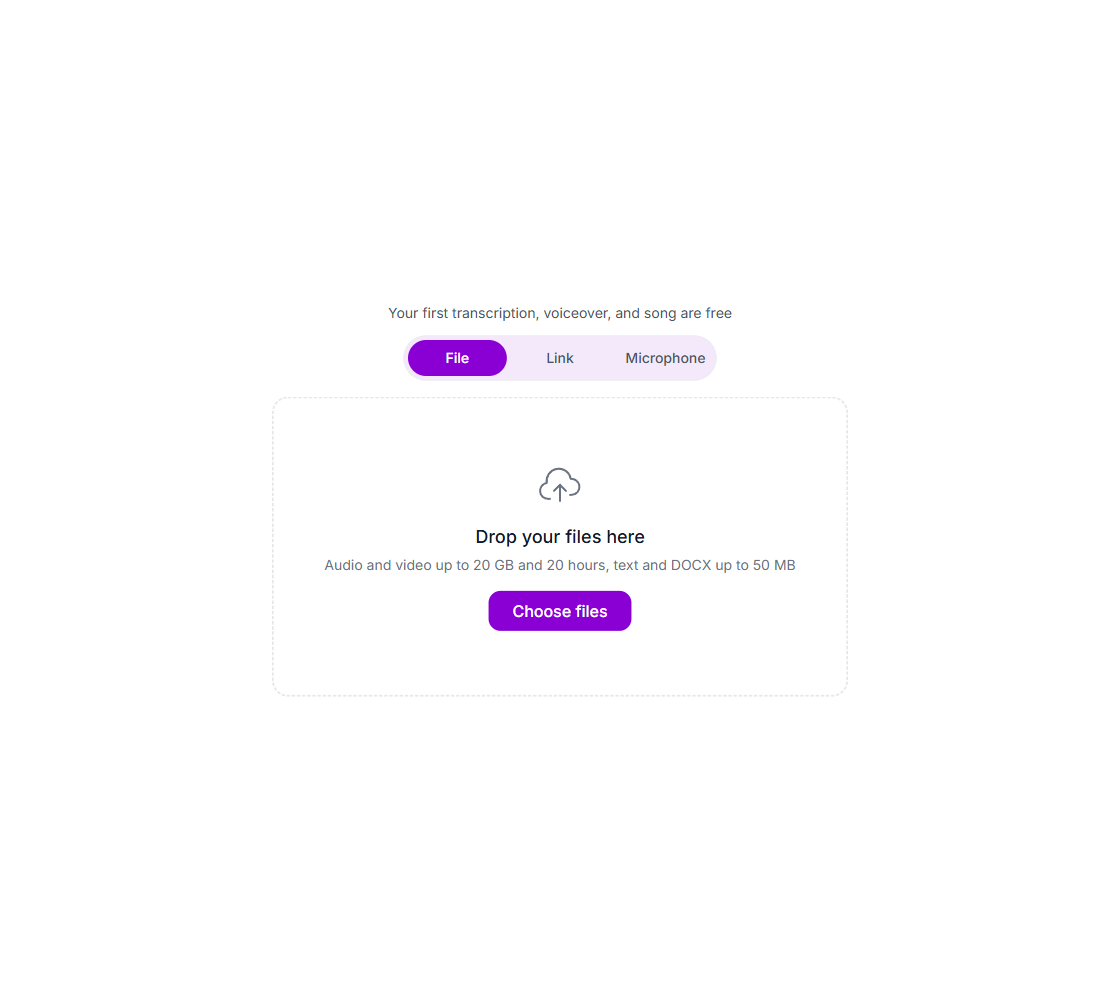
Sign in at my.voicee.pro, stay on the File tab, click Choose files, and select the audio or video recording you have permission to process. For an online recording, switch to the Link tab and paste the URL, or use the Microphone tab to record directly.
Select Transcription and Click Process
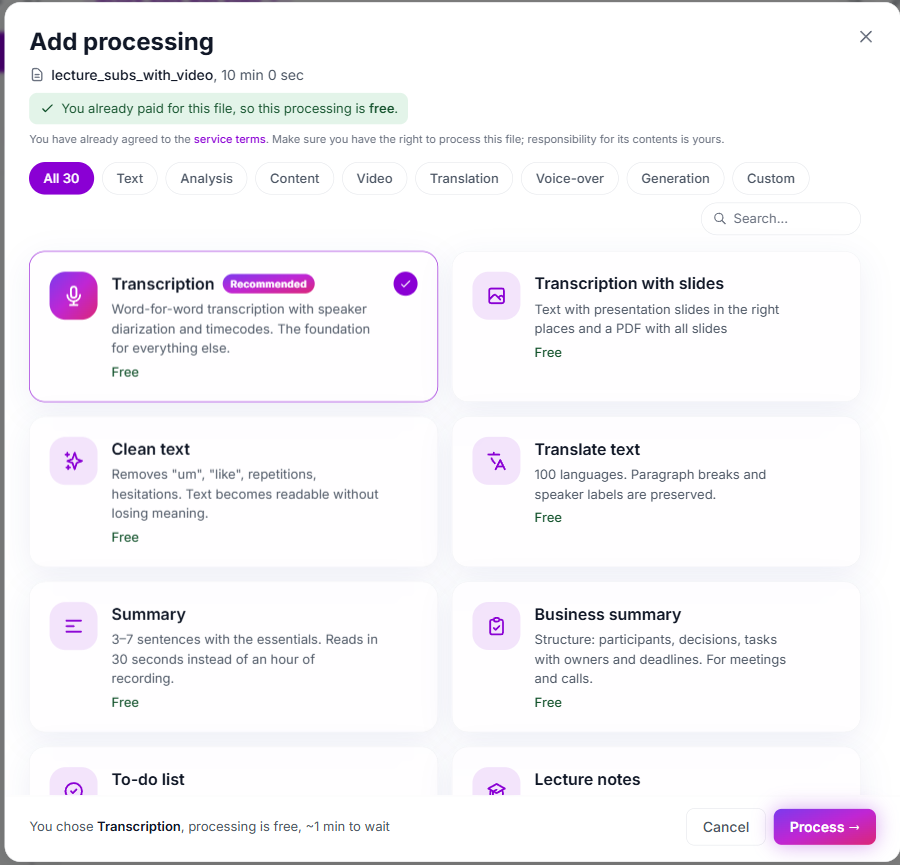
Choose Transcription in the operation list and click Process. Voicee Studio separates speaker turns automatically, adds clickable timestamps to every line, and marks noticeable pauses with inline Silence markers.
Verify Quotes, Export Text, or Add a Summary
On the Transcription tab, click any timestamp to replay that exact moment and verify names, terms, or overlapping speech. Click Download to export plain text. For SRT/VTT captions or structured notes, click Add processing and select Subtitles or Business summary.
Check Quotes and Pauses Against the Original Audio
When you prepare an article, a user research report, or client meeting minutes, attributing a quote to the wrong person is worse than a typo. Because every line in Voicee Studio carries a speaker label and a clickable timestamp such as 00:09, you jump straight to the spoken sentence, hear how it was delivered, and spot inline Silence markers where someone paused before answering.
Once your quotes check out, export the transcript or open a Business summary alongside it for your team. Upload your next interview or meeting at my.voicee.pro — your first transcription is free, and one-time hour packages from $7 / €6 never expire.
Frequently Asked Questions
How well does Voicee Studio separate several speakers in one recorded meeting?
Voicee Studio automatically detects speaker turns and labels each participant in two-person interviews, panel discussions, and team calls. Clear speech gives cleaner separation; where voices overlap, click the line timestamp to listen and confirm attribution before publishing.
Turn a Recording Into Something Your Team Can Use
Start with a transcript, then prepare notes, decisions and action items from the same recording.