AI Video Dubbing: Translate Multi-Speaker Videos With Cloned Speaker Voices
Translate spoken dialogue in your video into another language at my.voicee.pro: use AI voices cloned from the original speakers, keep the original timing, and download a finished dubbed video file.
Key Takeaways / TL;DR
- Each speaker’s voice is cloned from your source video, so hosts, guests, and instructors stay distinct instead of merging into one narrator.
- Pick Basic quality for news, lectures, and tutorials with calm delivery, or Premium quality when dialogues need richer emotion and intonation.
- Translated lines follow the original timing of each turn, keeping the dubbed soundtrack aligned with what happens on screen.
- You receive a finished dubbed video file — listen to the result in your browser before publishing.
Choosing the Right Setup When Dubbing Your Video
| What You Need | Option in Voicee Studio | When to Use It | What You Receive |
|---|---|---|---|
| Neutral narration | Revoicing on Basic quality | Lectures, walkthroughs, news, and tutorials | A dubbed video file with AI voices cloned from the original speakers |
| Expressive conversation | Revoicing on Premium quality | Interviews, video podcasts, stories, and lively dialogues | A dubbed video file designed for stronger emotion and intonation in dialogues |
| On-screen translated text | Subtitles on the video (Basic quality) | Social feeds and viewers watching on mobile | Translated captions burned directly into the dubbed video file |
| Separate caption files | Subtitles or Translate subtitles | YouTube, web players, and video editors | Standalone SRT and WebVTT files with millisecond timecodes |
Steps to Your Result
Upload Your Video or Paste a YouTube Link
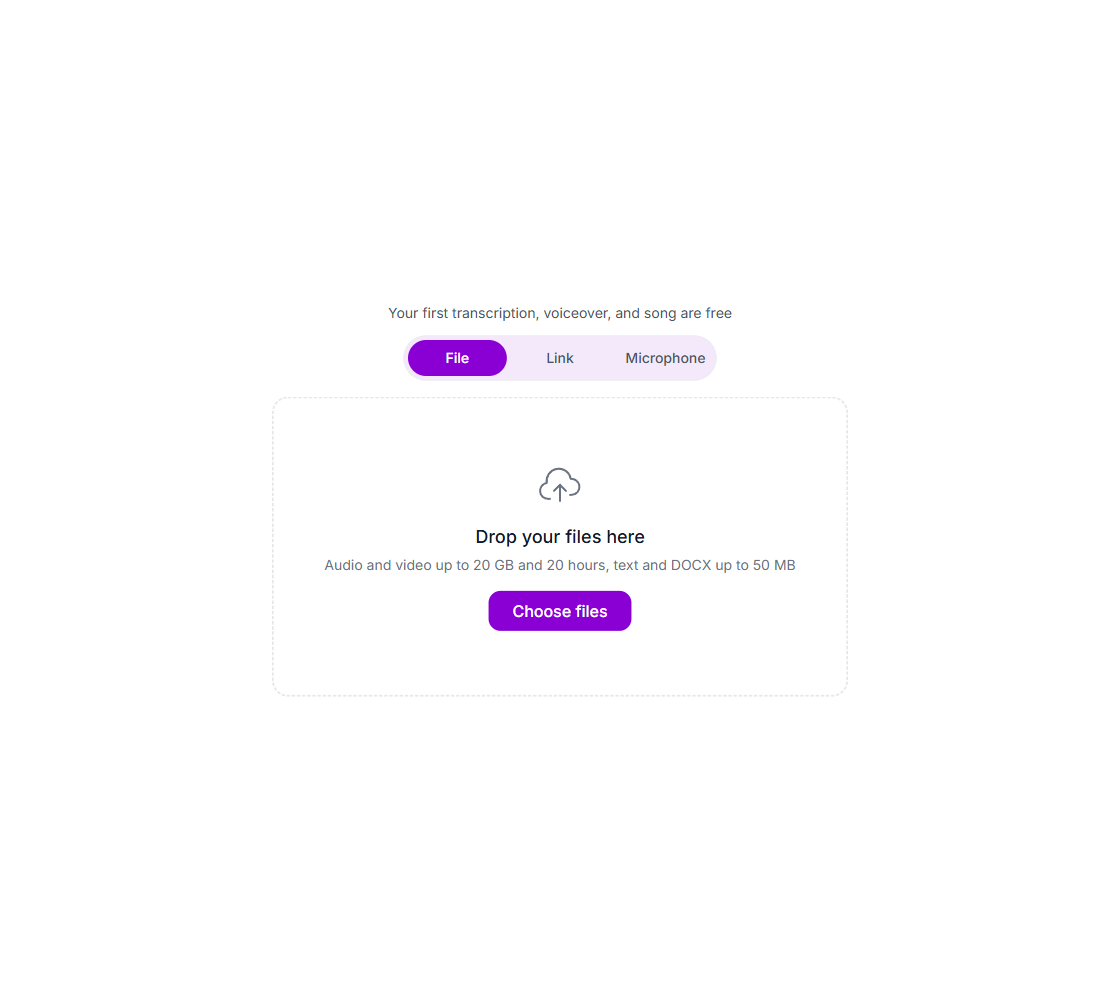
Sign in at my.voicee.pro, stay on the File tab, click Choose files, and select a video file you have permission to process (dubbing requires a video track). If the video is already published on YouTube, open the Link tab and paste its URL instead.
Select Revoicing, Target Language, and Quality
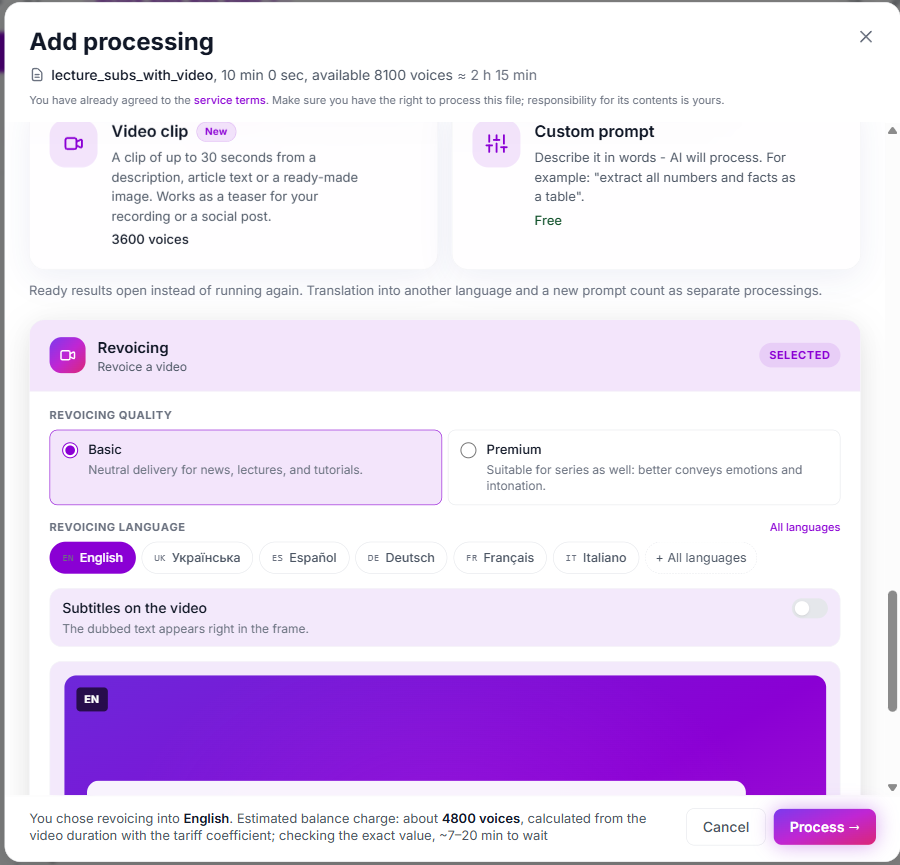
Choose Revoicing in the operation list, pick the target language, and select Basic for neutral narration or Premium for expressive dialogues. On Basic quality, switch on Subtitles on the video if you want burned-in translated captions, then click Process.
Preview in the Browser and Download the Dubbed Video File
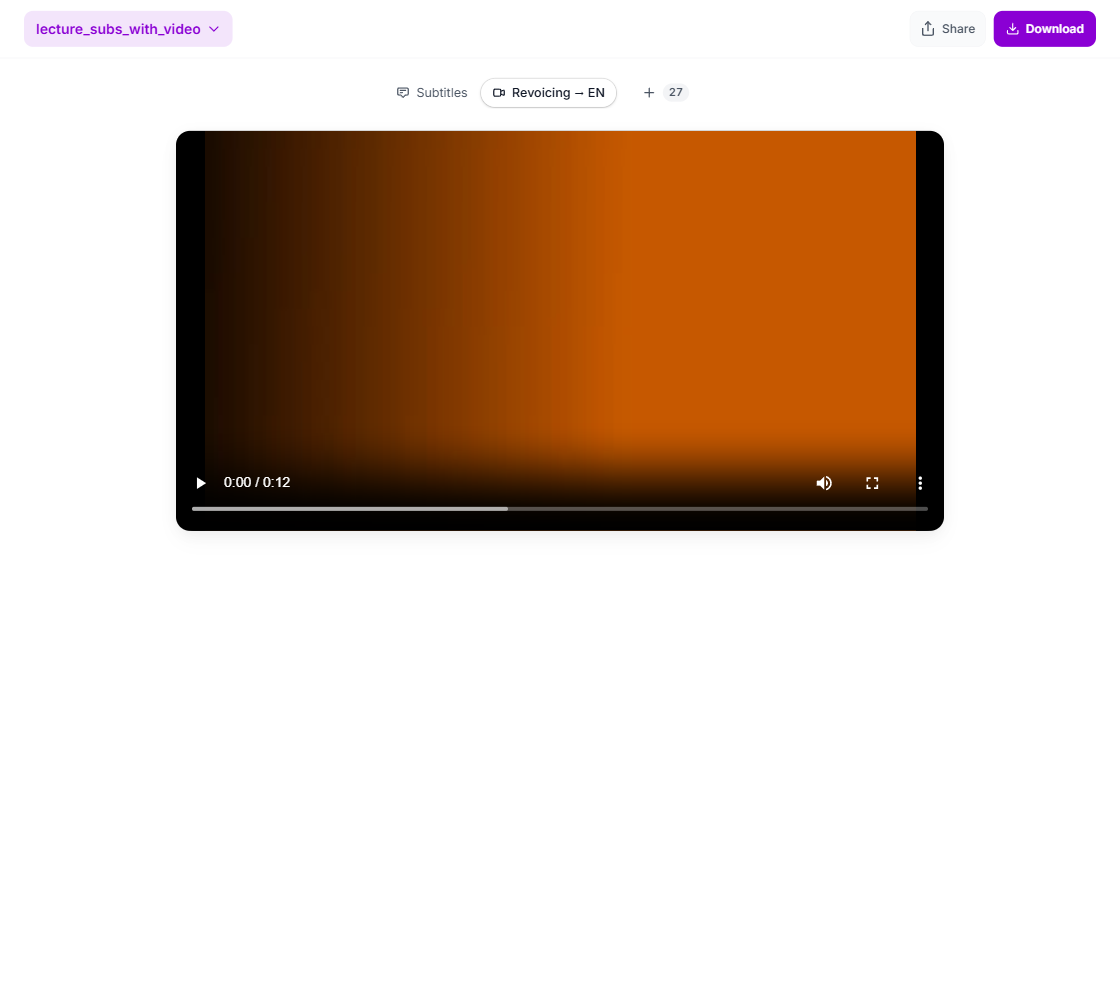
Open the finished Revoicing tab and play the video in your browser to check names, terminology, and pacing before publishing. Click Download to save the video file, or click Add processing to dub the same video into another language.
Keep Multi-Speaker Turns Separate and Synchronized
Translated sentences often run longer than the original speech, especially when moving from English into Spanish, German, or French. When a voiceover ignores pauses and speaker changes, audio drifts away from the picture and a two-person interview starts sounding like one flat voice reading a script.
Voicee Studio detects speaker turns, uses AI voices cloned from the original speakers, and aligns translated speech with the original timeline; listen to the result before publishing. Upload a video at my.voicee.pro to hear your speakers in another language — one-time hour packages start at $7 / €6 for 1 hour with Visa or Mastercard and never expire.
Frequently Asked Questions
Can I combine burned-in translated subtitles and AI dubbing in the same video?
Yes. When ordering Revoicing on Basic quality, enable Subtitles on the video to burn the translated captions directly into the dubbed video file. If you also need standalone SRT or WebVTT files, click Add processing on the same project and run Subtitles or Translate subtitles.
Turn a Recording Into Something Your Team Can Use
Start with a transcript, then prepare notes, decisions and action items from the same recording.