How to Review Long, Noisy Multi-Speaker Recordings With Speaker Labels
Review long interviews, lectures, and calls with background noise, pauses, and several voices — use speaker labels, clickable timestamps, and subtitles in your browser at my.voicee.pro.
Key Takeaways / TL;DR
- On a long recording, check speaker labels and timing against the audio before relying on a quote.
- Voicee Studio separates speaker turns automatically and marks pauses with inline Silence markers; review unclear passages against the audio.
- Clickable timestamps stay attached to every spoken line, making it fast to check names, accents, and specialized terms across European languages.
- Work in your web browser at my.voicee.pro with nothing to install; your first transcription is free.
What Happens on Long Multi-Speaker Recordings
| Recording Challenge | What to Check | In Voicee Studio | What That Means for You |
|---|---|---|---|
| Long pauses and room noise | Check the wording around quiet passages | Marks pauses clearly with inline Silence markers | Replay the passage before including it in a quote |
| Several people talking | Check which participant said each line | Separates dialogue turns with automatic speaker labels | You see right away who asked, answered, or agreed |
| Timecodes on long sessions | Compare text and subtitle timing with the audio | Clickable line timestamps plus millisecond SRT and WebVTT cues | Use timestamps to review subtitle timing and quotes |
| Getting started | Choose a browser workspace and review your recording | Upload in your browser at my.voicee.pro and review on screen | Work in the browser without installing a transcription app |
Steps to Your Result
Upload Your Recording in the Browser
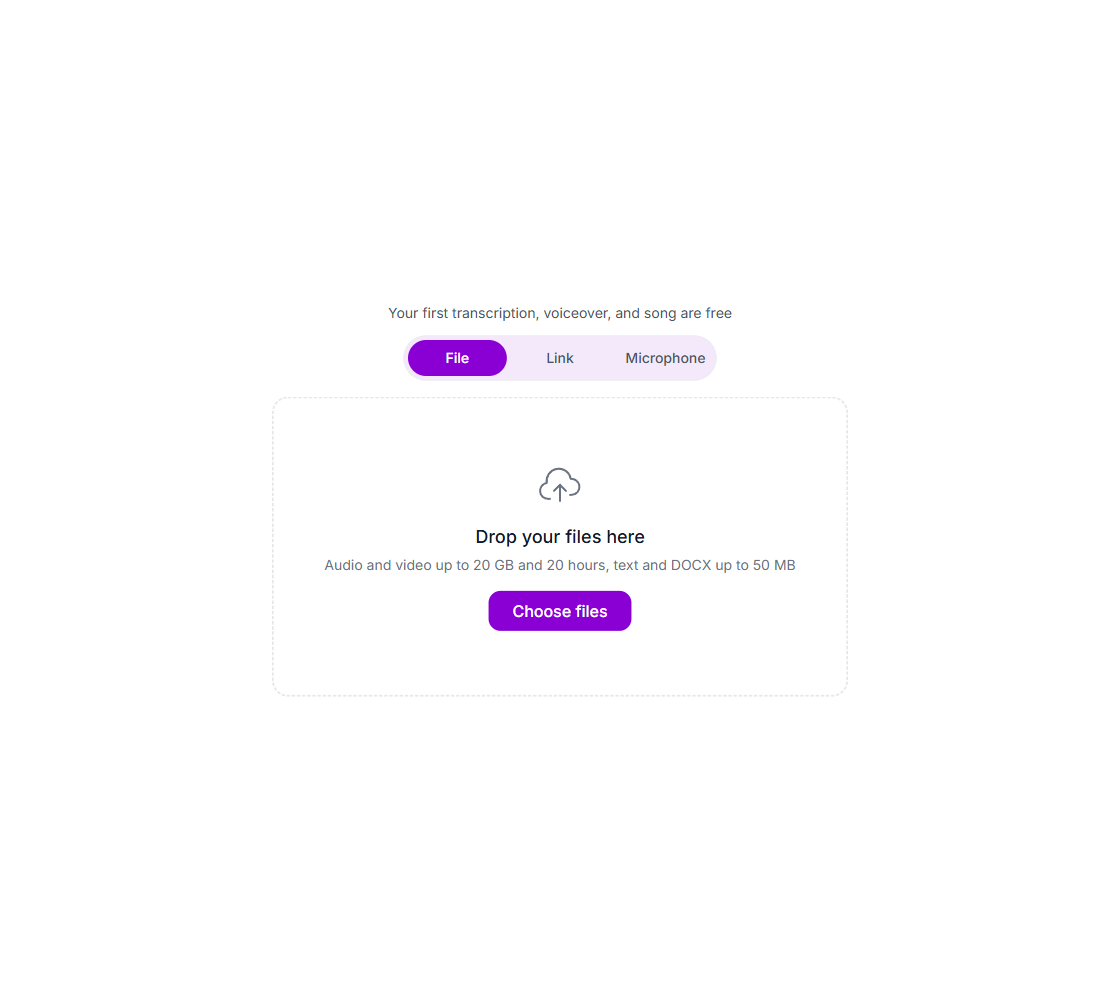
Sign in at my.voicee.pro, stay on the File tab, and click Choose files to add your long interview, seminar, or meeting recording — or paste its link on the Link tab. No transcription app needs to be installed.
Run Transcription, Then Add Subtitles if Needed
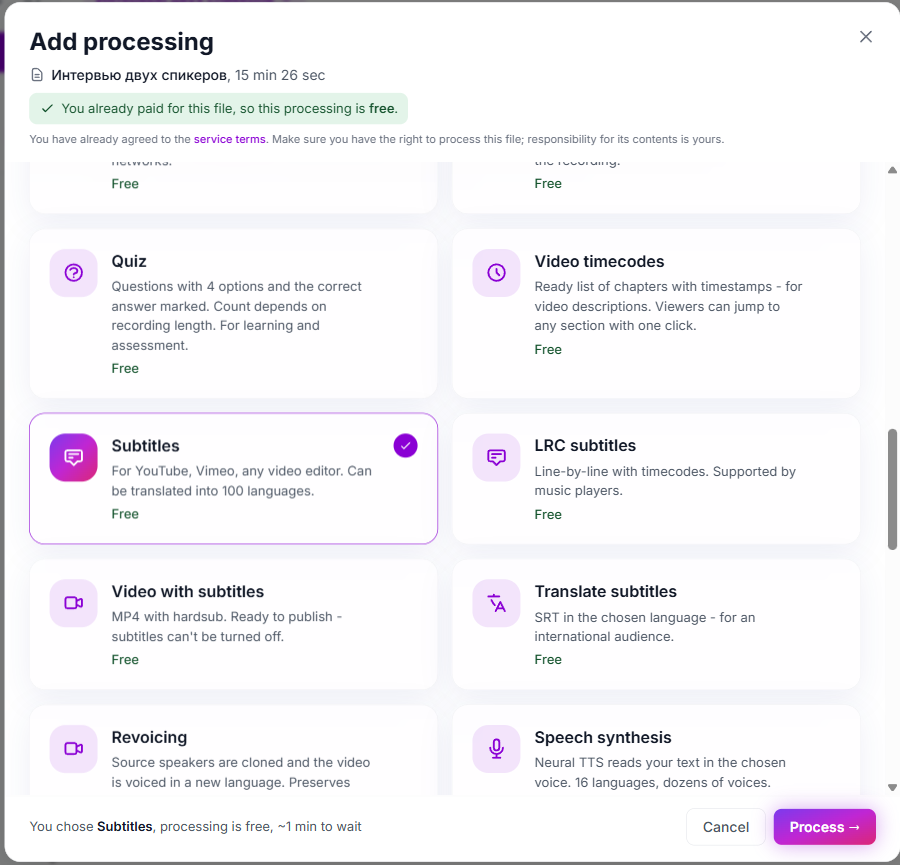
Select Transcription and click Process to get speaker-labeled text with clickable timestamps and inline Silence markers. If you also need timed captions for video, click Add processing when the transcript opens, select Subtitles, and click Process.
Check Tricky Passages by Timestamp and Export
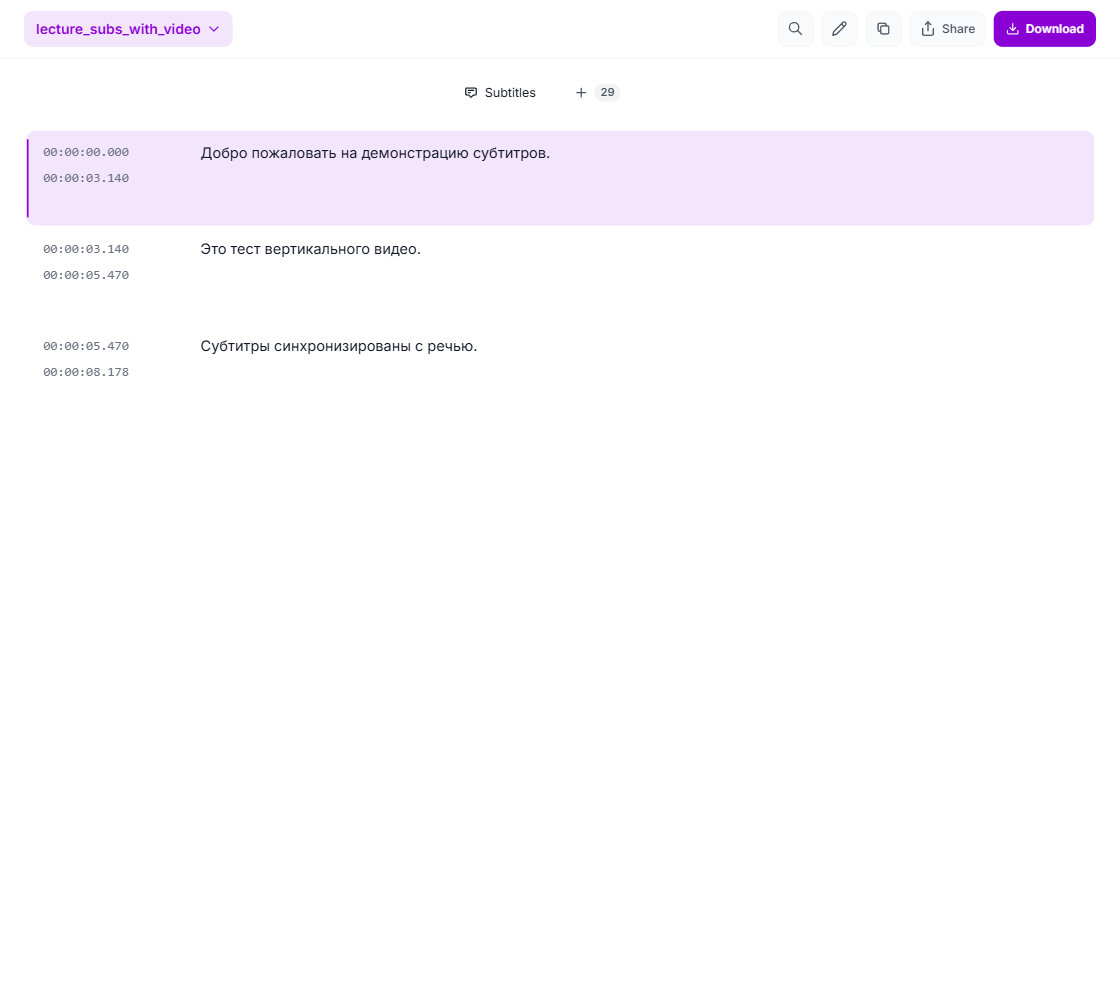
Click timestamps next to names, domain terms, or overlapping speech to hear those exact seconds and fix any wording right in the workspace. Then click Download on the Transcription or Subtitles tab to save plain text, SRT, or WebVTT files.
Why Multi-Speaker European Recordings Need More Than Unlabeled Text
Real recordings rarely sound like a quiet studio booth: people interrupt one another, rooms echo, pauses stretch out, and speakers mix English product terms into German, Polish, Spanish, French, or Turkish sentences. Unlabeled text and inaccurate timecodes make these passages harder to check, so review them against the original recording.
In Voicee Studio, automatic speaker labels, inline Silence markers, and clickable timestamps work together so you only replay the moments that genuinely need a human ear. Test a difficult recording of your own at my.voicee.pro — your first transcription is free, and non-expiring packages start at $7 / €6 with Visa or Mastercard.
Frequently Asked Questions
Do I need to install any tools or own a powerful computer to transcribe long recordings?
You can work in the browser without installing a transcription app. Sign in at my.voicee.pro, upload the recording or paste a link, and review your speaker-labeled transcript, Business summary, or subtitles on the page.
Turn a Recording Into Something Your Team Can Use
Start with a transcript, then prepare notes, decisions and action items from the same recording.