YouTube Video Localization for Creators: Chapters, Translated Subtitles, and Dubbing
Paste a link to your YouTube video at my.voicee.pro to produce chapter drafts from topic time ranges, translated SRT/VTT subtitle files, and a dubbed video file with AI voices cloned from the original speakers.
Key Takeaways / TL;DR
- Turn one YouTube video you own or have permission to process into description chapters, translated captions, and a dubbed video file in one browser studio.
- Paste your YouTube URL on the Link tab at my.voicee.pro instead of uploading the heavy source file from scratch.
- AI voices cloned from the original speakers voice each participant separately in interviews, podcasts, and collaborations; listen to the result before publishing.
- The Business summary gives you an overview, main topics with time ranges, agreements and recommendations that you can adapt into YouTube chapters and show notes.
Three Steps to Open One YouTube Video to International Viewers
| Localization Step | What You Add | What Viewers Get | Operation in Voicee Studio |
|---|---|---|---|
| Chapters and show notes | Overview and main topics with time ranges for the video description | A quick way for viewers to navigate sections on YouTube | Business summary |
| Translated subtitles | SRT or WebVTT caption tracks in other languages | Viewers follow your original upload in their own language | Subtitles and Translate subtitles |
| Full video dubbing | A finished dubbed video file with AI voices cloned from the original speakers | Viewers listen in their language with original timing preserved | Revoicing in the target language |
Steps to Your Result
Paste Your YouTube Link on the Link Tab
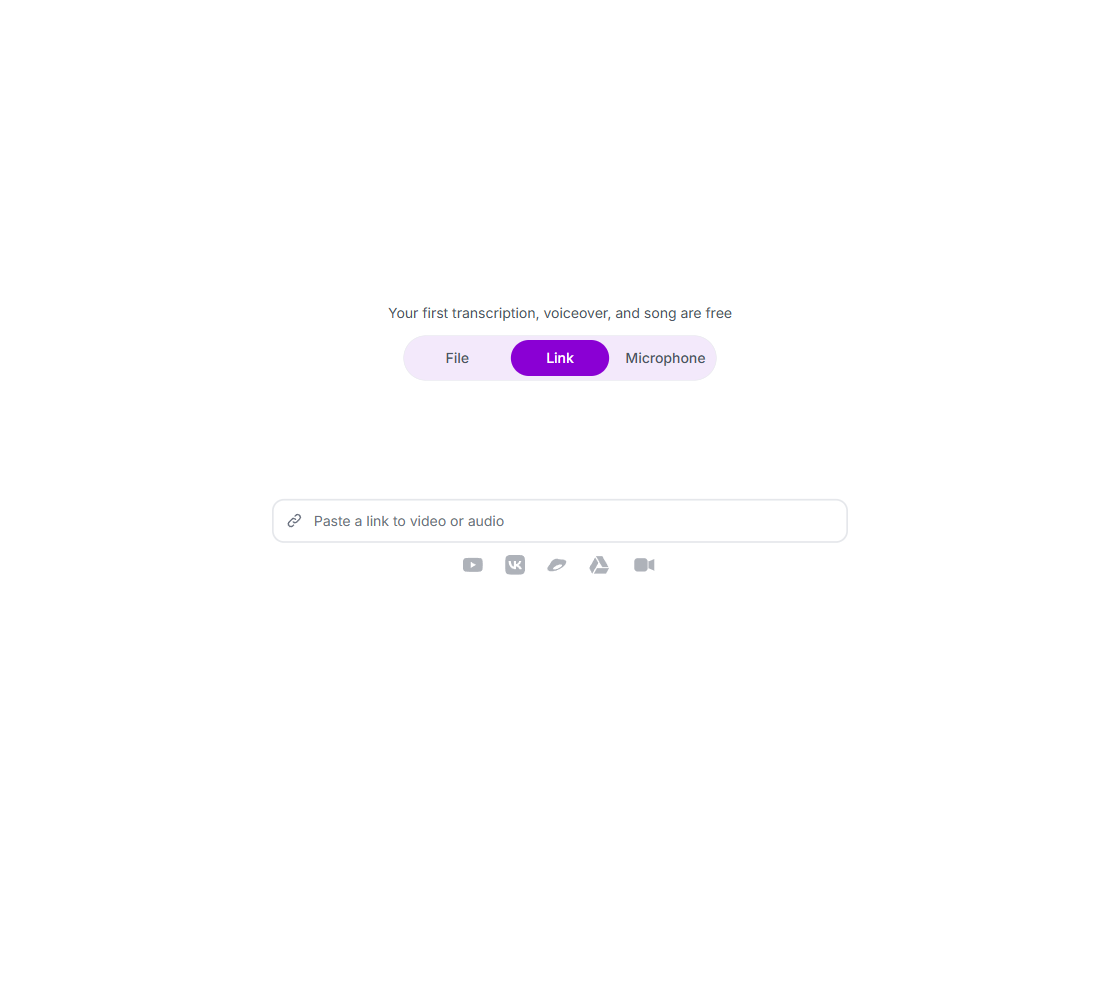
Sign in at my.voicee.pro, switch to the Link tab on the upload screen, and paste the URL of a YouTube video you have permission to process — or upload your source MP4 on the File tab.
Order Translated Subtitles or Revoicing
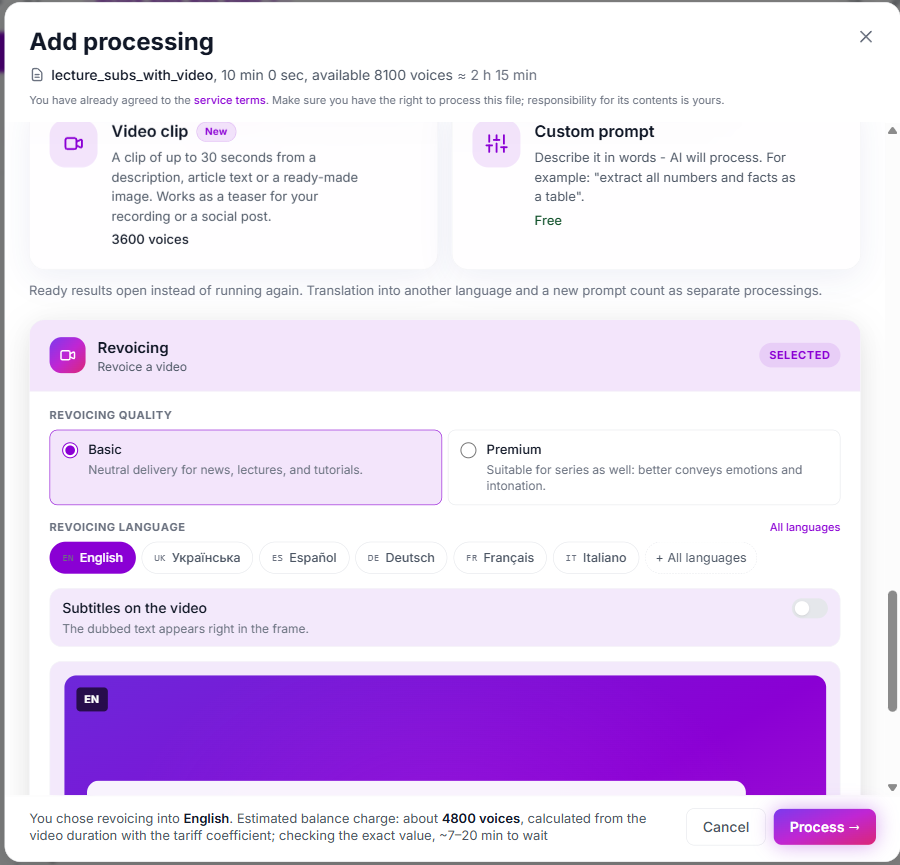
Select Translate subtitles and pick a target language for SRT/VTT caption tracks, or choose Revoicing, select your target language and Basic or Premium quality, and click Process.
Preview, Download, and Publish on YouTube
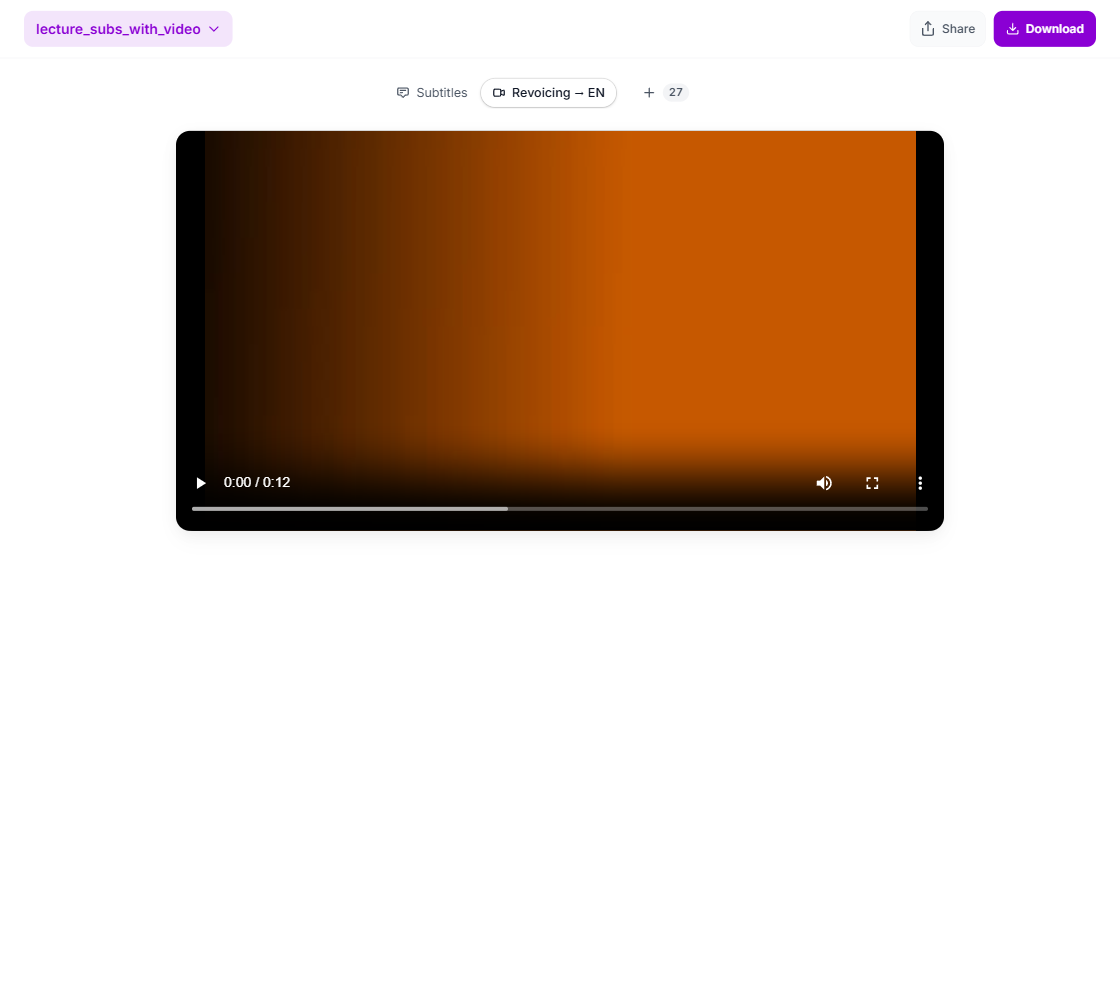
Play the dubbed video on the Revoicing tab to listen to the result and check names and timing before publishing, then click Download. Save SRT/VTT files from your subtitle tabs, upload the captions in YouTube Studio, and publish the dubbed video file for your international audience.
Test Demand With Subtitles, Add Dubbing Where Viewers Respond
Adding translated SRT or WebVTT caption tracks to your main video lets you see which regions start watching while keeping views, comments, and subscribers on a single upload.
For the languages that bring real watch time, click Add processing on the same project and order Revoicing: Voicee Studio returns a finished video file with AI voices cloned from the original speakers — listen to the result before publishing. Paste a link to one of your videos at my.voicee.pro — your first transcription is free, and one-time hour packages from $7 / €6 never expire.
Frequently Asked Questions
Can I localize a long tutorial into several languages without uploading it again?
Yes. Add the video once at my.voicee.pro, then click Add processing on the same project to order translated subtitles or Revoicing for each additional target language.
Turn a Recording Into Something Your Team Can Use
Start with a transcript, then prepare notes, decisions and action items from the same recording.