Separating Speakers in Multilingual Recordings: Get Clear Speaker Labels for Notes and Dubbing
Turn interviews, panels, and international calls into structured dialogue where you see who said what and when — ready for quote checking, meeting notes, and multi-speaker video dubbing at my.voicee.pro.
Key Takeaways / TL;DR
- Plain speech-to-text only captures the words spoken; automatic speaker labels show who said each line and when.
- Voicee Studio pairs every speaker turn with a clickable timestamp like 00:02 and marks pauses with inline Silence markers.
- Automatic speaker labels help you review meeting notes; video dubbing uses cloned speaker voices for translated dialogue.
- Check turns against the audio and edit speaker names in the browser workspace before exporting your transcript or summary.
What Automatic Speaker Labels Change in Everyday Work
| Your Task | Without Speaker Labels | With Speaker Labels in Voicee Studio | What You Gain |
|---|---|---|---|
| Meeting notes | An unattributed wall of text where commitments blur together | Every line carries a speaker label and a clickable timestamp | Clear ownership of tasks and quick audio checks |
| Podcast and interview editing | Listening line by line to mark host and guest turns by hand | Automatic separation of host, guest, and panel turns | A dialogue transcript ready for quotes and show notes |
| Multi-speaker video dubbing | One voice reads every participant’s lines | AI voices cloned from the original speakers on the original timeline | Separate speaker voices in the finished dubbed video file |
Steps to Your Result
Upload Your Multi-Speaker Recording
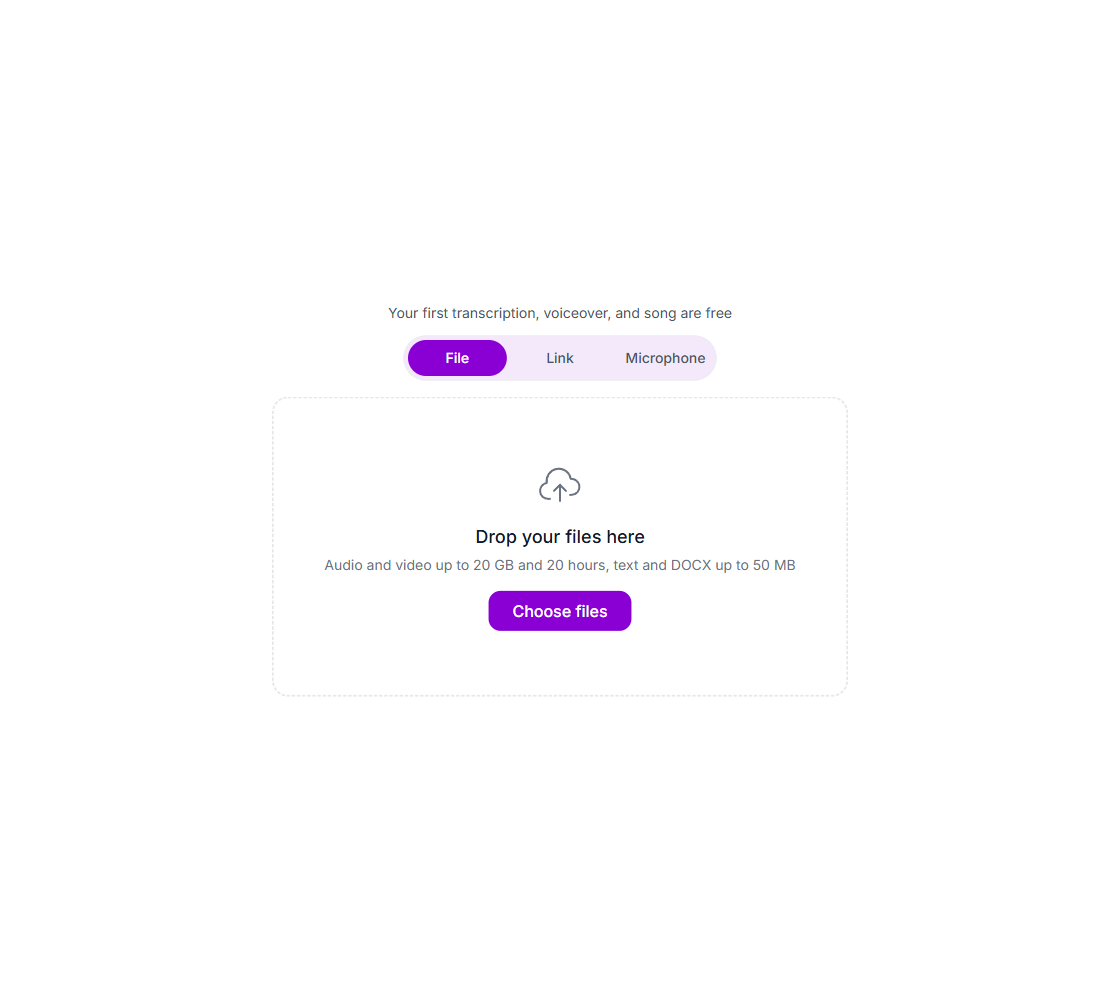
Sign in at my.voicee.pro, stay on the File tab, click Choose files, and select a recording where several people talk — an interview, panel, seminar, or team call — or paste a link on the Link tab.
Select Transcription and Click Process
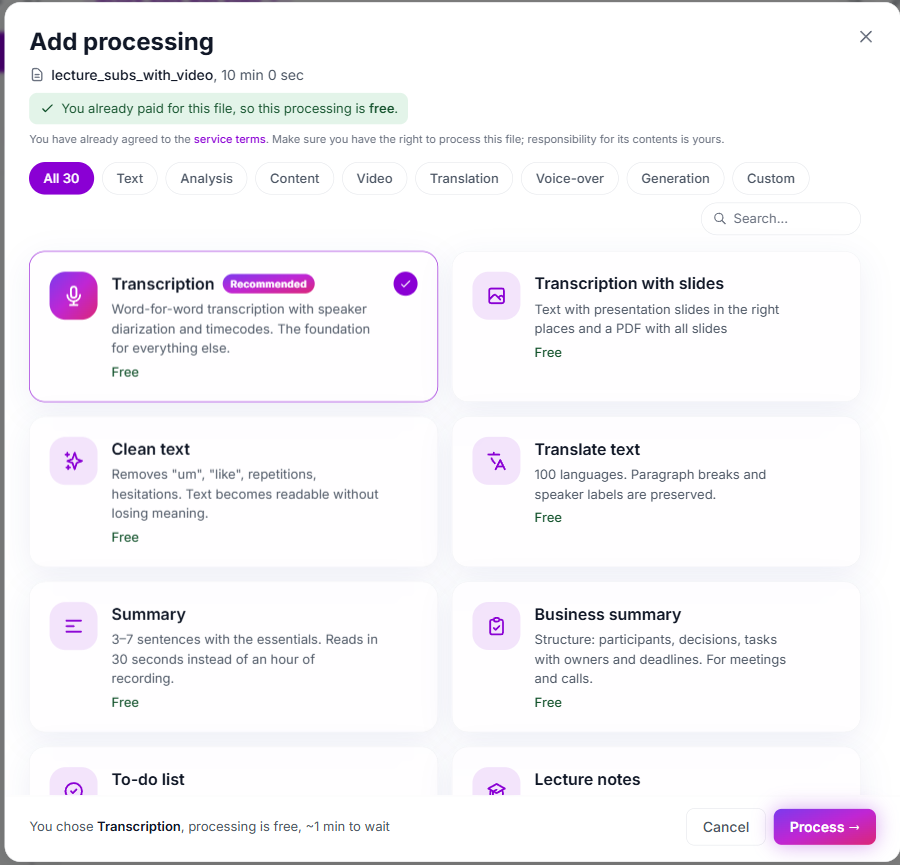
Choose Transcription in the operation list and click Process. Voicee Studio transcribes the conversation, separates speaker turns automatically, and places a clickable timestamp on every line.
Verify Speaker Turns, Edit Names, and Export
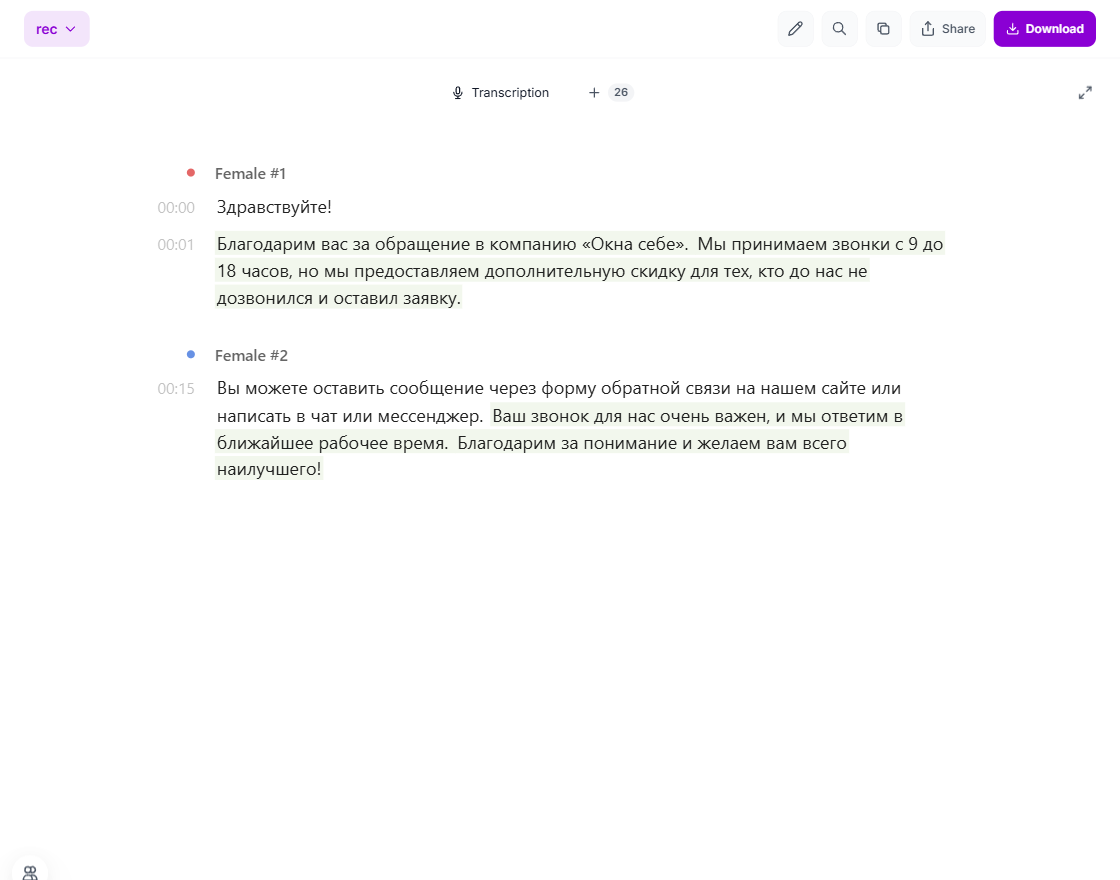
On the Transcription tab, review the separated turns and speaker labels, click timestamps on overlapping lines to check the audio, and edit speaker names in the workspace. Click Download to export, or click Add processing to run a Business summary or multi-speaker Revoicing.
Why Knowing Who Said What Matters for Notes, Quotes, and Dubbing
When two or three voices collapse into one unlabeled block of text, every next step takes manual repair: quotes risk going to the wrong person, tasks lose their owner, and translated video dubbing turns a lively exchange into a single flat voiceover.
Voicee Studio separates speaker turns in the transcript, which you can review before using a Business summary, SRT/VTT subtitles, or a dubbed video file. Upload a multi-speaker recording at my.voicee.pro — your first transcription is free, and one-time hour packages from $7 / €6 never expire.
Frequently Asked Questions
Do automatic speaker labels work when participants speak with accents or switch languages?
Voicee Studio provides automatic speaker labels, but check attribution against the recording when speakers have accents, switch languages, or talk at the same time. Click timestamps to replay unclear turns and correct speaker names before exporting.
Turn a Recording Into Something Your Team Can Use
Start with a transcript, then prepare notes, decisions and action items from the same recording.