Turn Meeting Recordings Into Structured Notes, Decisions, and Action Items
Upload a meeting recording at my.voicee.pro to work in two tabs: a speaker-labeled transcript and a Business summary with an overview, main topics with time ranges, agreements and recommendations.
Key Takeaways / TL;DR
- Select Business summary to get an overview, main topics with time ranges, agreements and recommendations without writing chat prompts.
- Main topics can include time ranges, and you can open the Transcription tab and click the timestamp there to hear the discussion behind a decision.
- The summary and the full speaker-labeled transcript are available in two tabs of the same project.
- Agreements and recommendations get dedicated sections instead of disappearing inside long paragraphs.
What You Get Inside the Business Summary
| Summary Section | What It Captures | How to Verify It | Who Uses It |
|---|---|---|---|
| Executive overview | What the meeting covered and where it landed | Compare with the Transcription tab right next to it | Managers and teammates who missed the call |
| Main topics with time ranges | Main discussion points with time ranges where available | Open the Transcription tab and click the timestamp there | Anyone checking the context behind a decision |
| Agreements | Decisions and commitments reached during the meeting | Open the Transcription tab and click the timestamp there | Participants aligning on what was decided |
| Recommendations and action items | Follow-up tasks and next steps from the discussion | Open the Transcription tab to check the spoken wording | Owners moving tasks into the team tracker |
Steps to Your Result
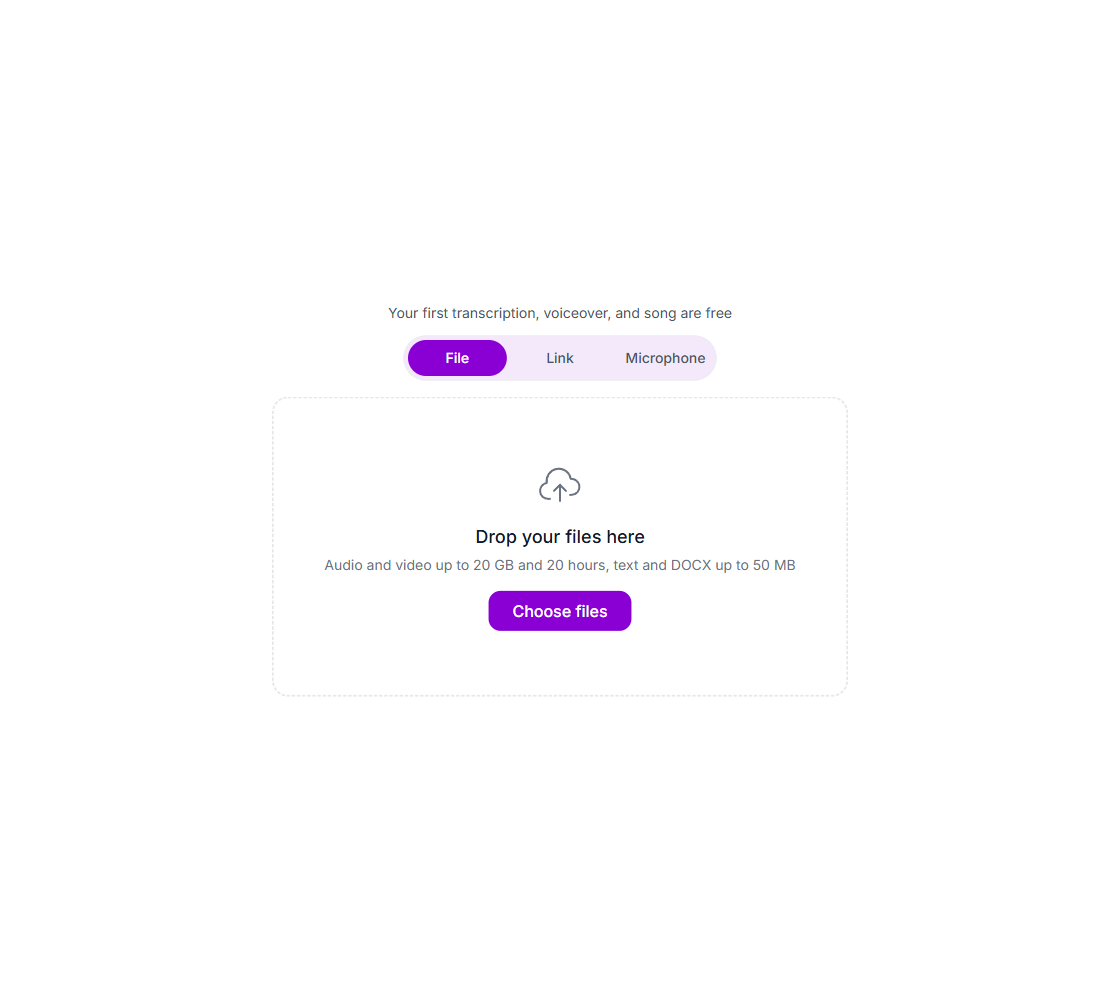
Upload Your Meeting Recording or Paste a Link
Sign in at my.voicee.pro, stay on the File tab, click Choose files, and add the audio or video recording of your call or in-person meeting — or open the Link tab and paste a shared recording URL.
Select Business Summary and Click Process
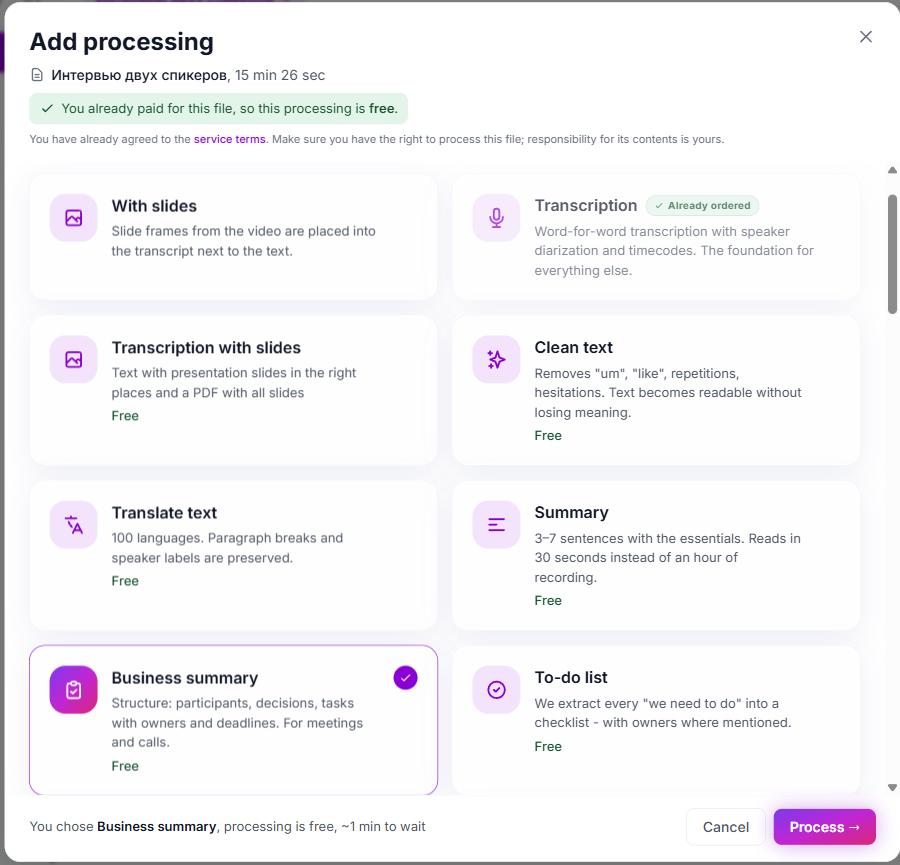
Choose Business summary in the operation list and click Process. If you ran Transcription first, click Add processing once it finishes, select Business summary, and click Process to build structured notes from the timecoded transcript.
Verify Decisions by Timestamp and Download the Notes
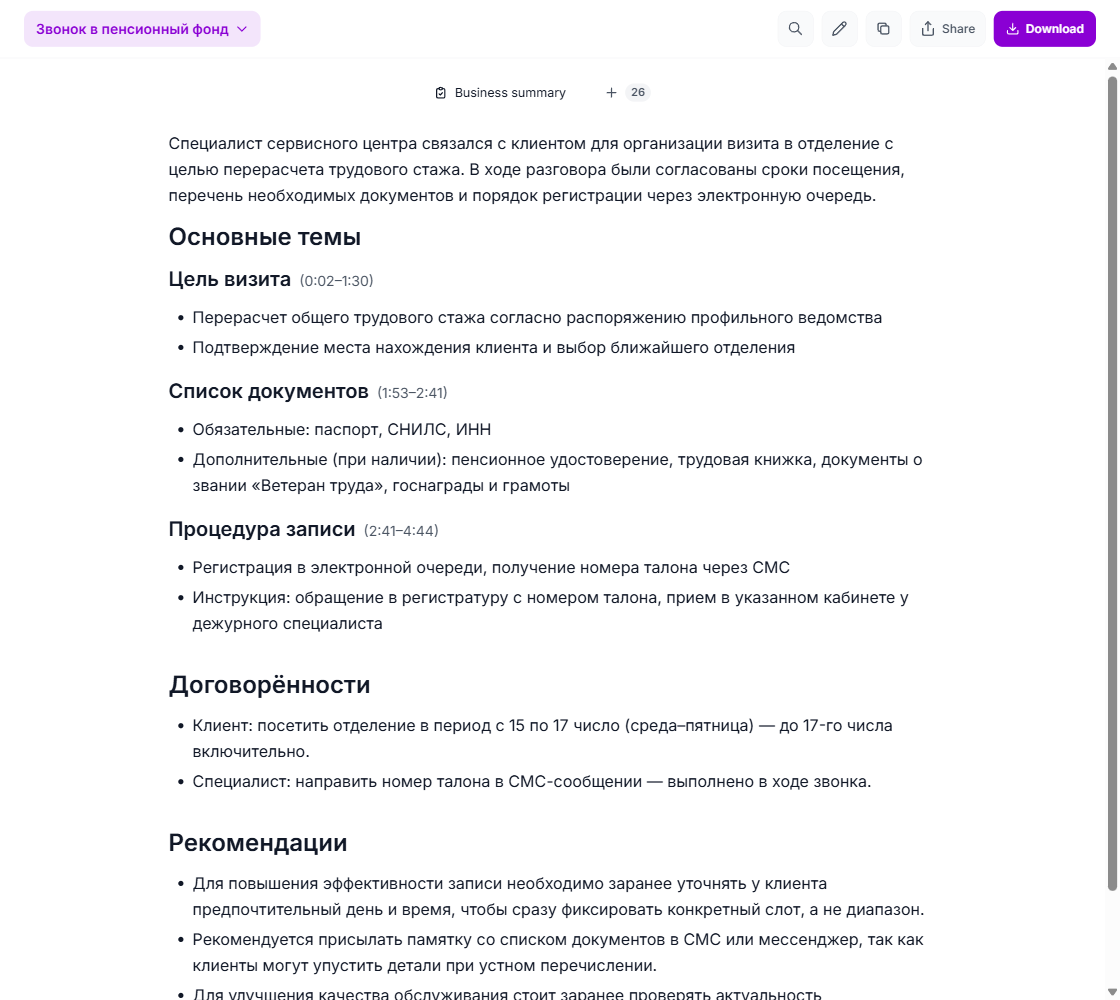
Review the overview, main topics with time ranges, agreements and recommendations on the Business summary tab. Open the Transcription tab and click the timestamp there to hear the source audio, then click Download to export the notes or Share to send a link to your team.
Check Summary Points Against What Was Actually Spoken
When meeting notes omit audio links or reduce a discussion to vague bullets, it becomes harder to check who committed to a Friday deadline. Keep the source recording available while you review decisions and tasks.
In Voicee Studio, the Business summary is built directly from your speaker-labeled, timecoded transcript and stays paired with it in the same workspace. Upload a recent call recording at my.voicee.pro to try it — your first transcription is free, and non-expiring hour packages start at $7 / €6.
Frequently Asked Questions
Do I need to connect my calendar or invite a bot to get meeting notes?
No. Voicee Studio works strictly from files you upload or links you paste at my.voicee.pro. No bot joins your live calls and no calendar integration is needed.
Turn a Recording Into Something Your Team Can Use
Start with a transcript, then prepare notes, decisions and action items from the same recording.