Privacy-First Audio Transcription for European Teams Without Call Bots
Transcribe confidential interviews, client calls, and internal meetings without connecting your calendar or inviting a call bot: upload only approved recordings at my.voicee.pro and delete them whenever your retention policy requires.
Key Takeaways / TL;DR
- No call bots and no calendar permissions: you decide which recorded files to upload instead of letting an automated guest join corporate meetings.
- Delete uploaded recordings and transcripts inside your workspace whenever you finish, or request account deletion in Settings.
- Recordings and transcripts stay in your account workspace, with speaker labels and clickable timestamps ready for internal verification.
- One-time packages at approximately €6 to €182 ($7 to $204), paid by Visa or Mastercard in Russian rubles at the current exchange rate, with no recurring subscription.
How File-Based Transcription Keeps Your Team in Control
| Control Point | Why Teams Care | How Voicee Studio Works | What Action You Take |
|---|---|---|---|
| Calendar and live calls | Automated bots can join sensitive client, HR, or legal calls uninvited | Works strictly from uploaded files, pasted links, or microphone recordings | Record in your approved tool, then upload only the sessions you choose |
| Scope of processed audio | Only sessions with clear participant consent should be transcribed | Processing starts from the recording you add; transcription may begin in the background after upload | Keep unapproved conversations outside the workspace entirely |
| Where transcripts live | Confidential notes belong in controlled accounts, not open paste pages | Review transcripts and Business summaries in your account workspace; use Share when you choose to share a result | Export verified files directly via Download for internal records |
| Deletion and erasure | Retention policies often require removing source media after sign-off | Move files to Trash and click Delete forever; request account deletion in Settings | Confirm permanent deletion after exporting the final text |
Steps to Your Result
Upload Only the Approved Recording
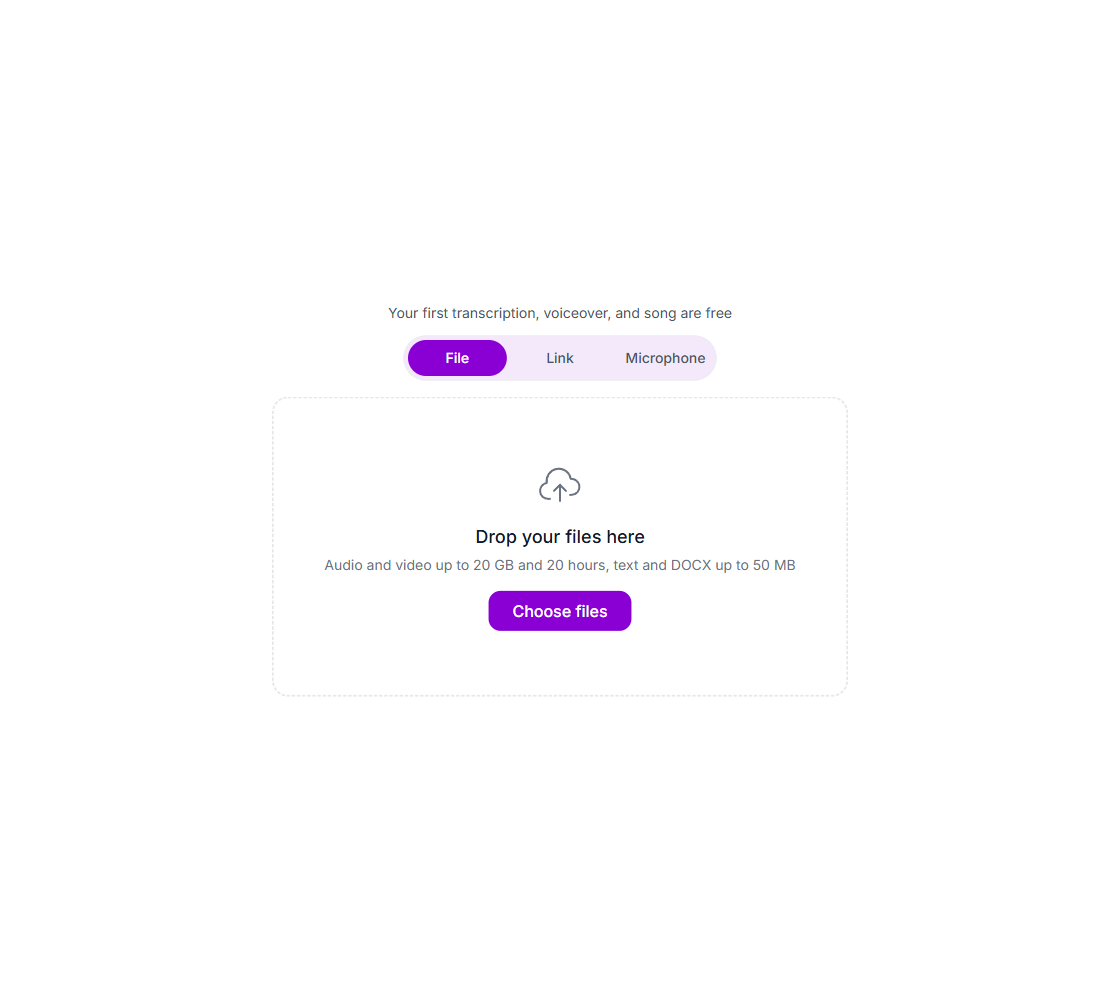
Record the session locally in your approved tool, sign in at my.voicee.pro, stay on the File tab, and click Choose files to upload that specific audio or video file. Voicee Studio never connects to your calendar and never joins calls.
Run Transcription Inside Your Workspace
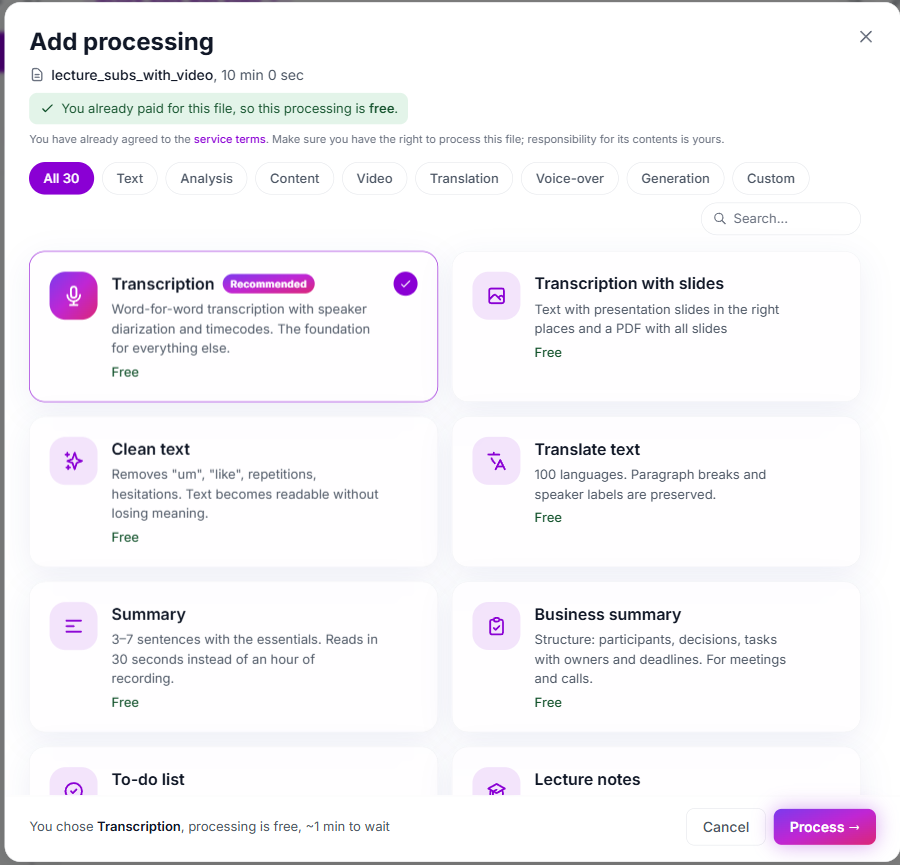
Select Transcription in the operation list and click Process. Review the transcript in your account workspace with automatic speaker labels, clickable timestamps, and inline Silence markers.
Download the Verified Text and Delete the Source
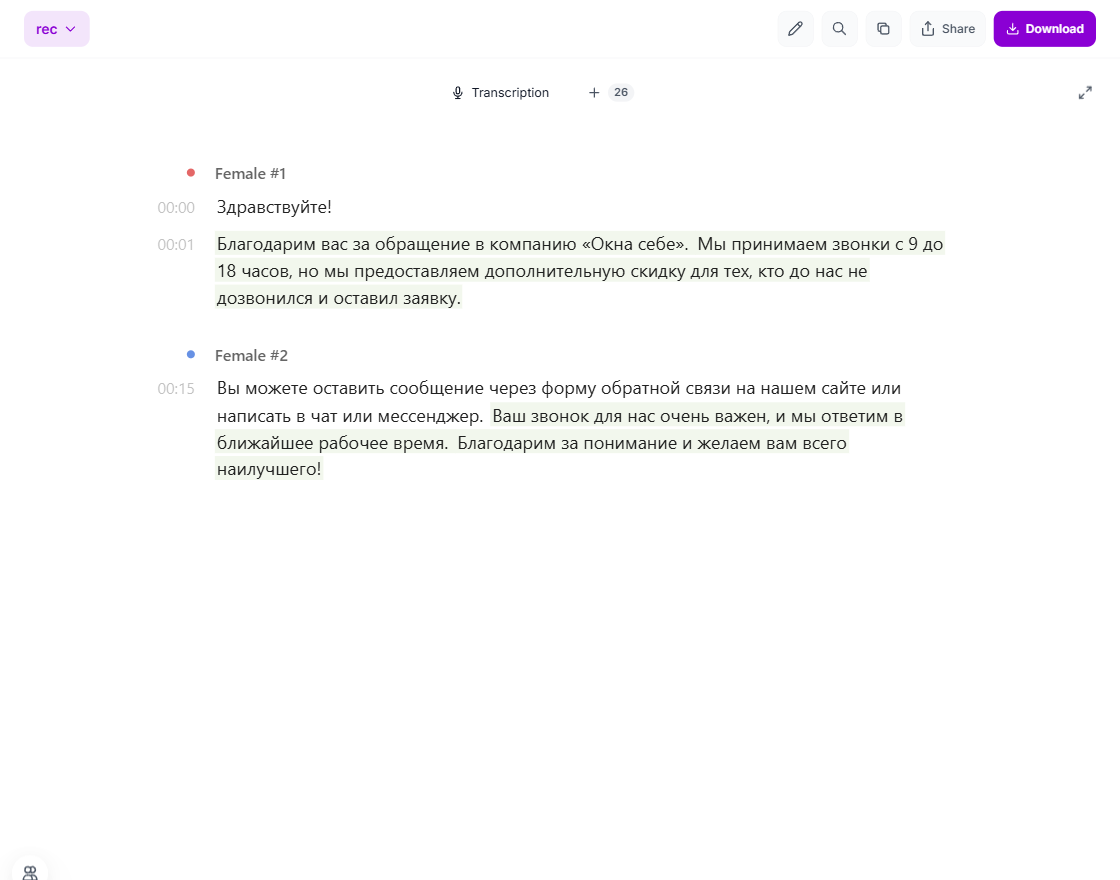
Verify quotes via clickable timestamps and click Download to save your transcript. When your retention rule calls for deletion, open the file’s action menu, click Delete to move it to Trash, then open Trash and choose Delete forever — or email hello@voicee.ru to ask about full account erasure.
Why European Organizations Separate Recording From Transcription
For legal, research, HR, and product teams in Europe, minimizing collected data and being transparent with participants are everyday obligations. Connecting an always-on call bot to a corporate calendar risks recording external guests before consent is confirmed.
Handling recording and transcription as two deliberate steps lets your team process only approved files — without paying a recurring per-seat subscription during quiet months. Upload an approved sample at my.voicee.pro: your first transcription is free, and one-time packages from €6 / $7 never expire.
Frequently Asked Questions
How can I permanently delete uploaded recordings or erase my account data?
Open the file menu in your workspace at my.voicee.pro, choose Delete to send the recording to Trash, and click Delete forever in Trash to remove it permanently. For full account deletion, open Settings and choose Delete account. The confirmation explains the waiting periods before access closes and data is erased. Contact hello@voicee.ru if you need help.
Turn a Recording Into Something Your Team Can Use
Start with a transcript, then prepare notes, decisions and action items from the same recording.